
Run OneDrive as a Windows Service with FireDaemon Pro

TABLE OF CONTENTS
- Introduction
- Turn Off Internet Explorer Enhanced Security Configuration
- Install OneDrive
- Setup OneDrive to work with FireDaemon Pro
- Install FireDaemon Pro
- Setup the OneDrive FireDaemon Pro Service
- Verify OneDrive is running correctly
- Managing OneDrive when running under FireDaemon Pro control
- Troubleshooting
Introduction
Microsoft OneDrive is a file hosting and synchronization service. It's useful for backing up files for safe off-site storage or to share files with others. OneDrive can be run as a Windows service using FireDaemon Pro. This allows you to start and run OneDrive automatically when Windows boots and before login. FireDaemon Fusion can also be used to manage your OneDrive service, plus other Windows services via your web browser.
Turn Off Internet Explorer Enhanced Security Configuration
When attempting to install OneDrive on Windows Server, you will need to ensure Internet Explorer Enhanced Security Configuration is turned off for Administrators via Server Manager. Otherwise, IE ESC may block the installation. Alternarively use Microsoft Edge or another modern browser to download and install OneDrive and FireDaemon Pro.
Install OneDrive
Microsoft OneDrive is already installed in Windows 10 and 11. OneDrive also comes with Microsoft Office. OneDrive is generally not installed on Windows Server. OneDrive can be downloaded from here. Alternatively, download a OneDrive Insider Build. If you have problems with synchronization, try installing the most recent Insider Build. We last tested OneDrive 26.088.0510.0001 on Server 2019 (OS build 17763.8755) in May 2026 and it appears to run and sync under FireDaemon Pro 6.
Setup OneDrive to work with FireDaemon Pro
Once you have installed OneDrive, you will need to set it up so it works properly with FireDaemon Pro.
Step 1: Log in to OneDrive with your Microsoft Account
You will need to log in to your OneDrive with your Microsoft Account. You may have to use Microsoft Authenticator to authorise the login.
Step 2: Make a note of where your OneDrive folder is located
So you know where your files are going to be stored. After that you can skip through the rest of the OneDrive setup wizard.

Step 3: Configure OneDrive
By default, OneDrive runs when you log in to Windows. You do not want that to happen when OneDrive is running as a service under FireDaemon Pro. So right-click on the OneDrive icon in the Task Tray:

OneDrive will now be displayed. Click on the Settings cog in the top right-hand corner and choose Settings:
 Ensure everything is unchecked in the Settings tab, then click OK (i.e. do not start OneDrive automatically and suppress all notifications).
Step 4: Log out and log back in again
It is really important to ensure that OneDrive is no longer running, so log out and log back in again and ensure you no longer see the OneDrive icon in the Windows Task Tray.

Install FireDaemon Pro
Setup the OneDrive FireDaemon Pro Service
Now start FireDaemon Pro and create a new FireDaemon Pro service (Ctrl+N) per the screenshot below:
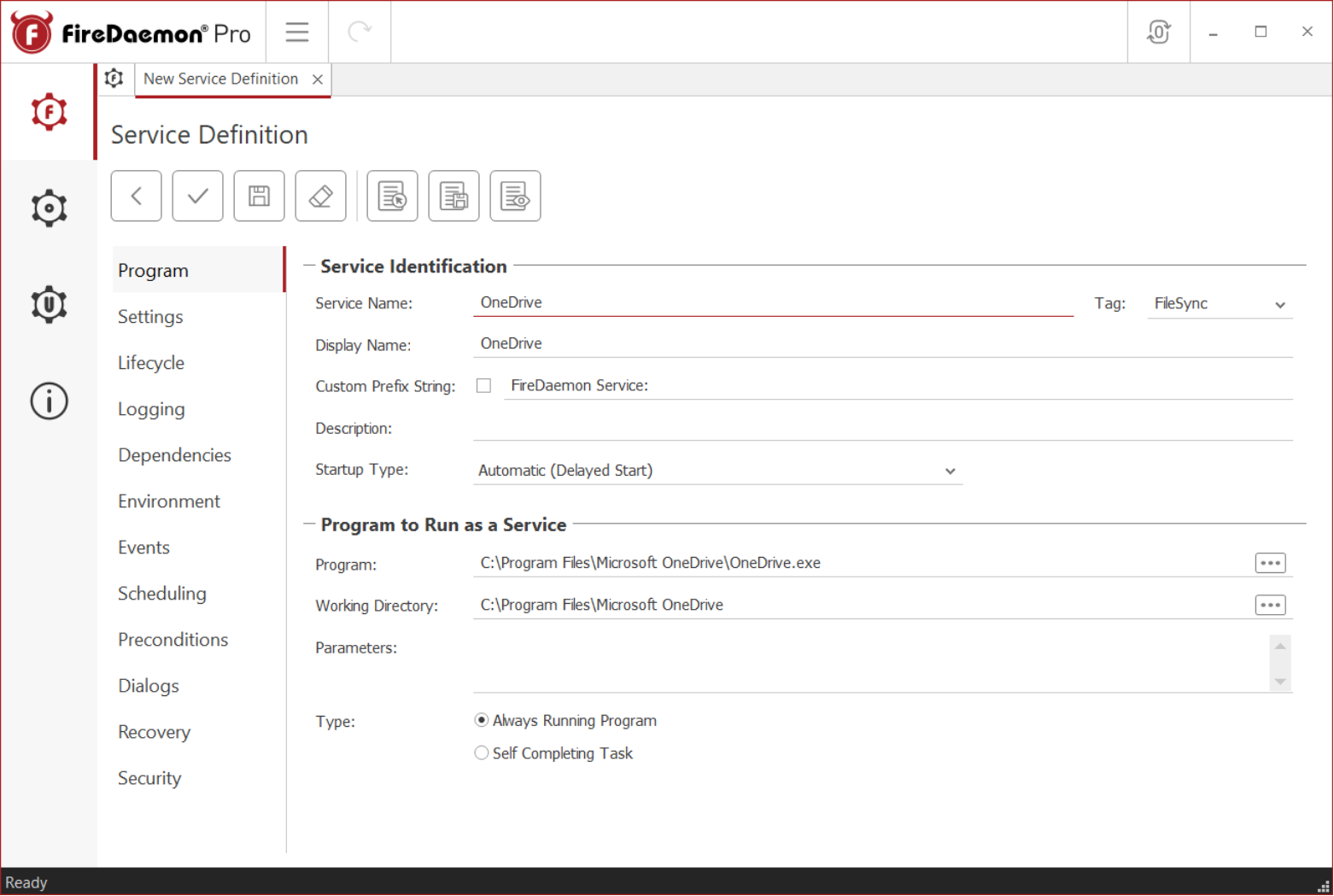
The Program and Working Directory should point to your OneDrive installation location.
- Program to C:\Program Files\Microsoft OneDrive\OneDrive.exe
- Working Directory to C:\Program Files\Microsoft OneDrive
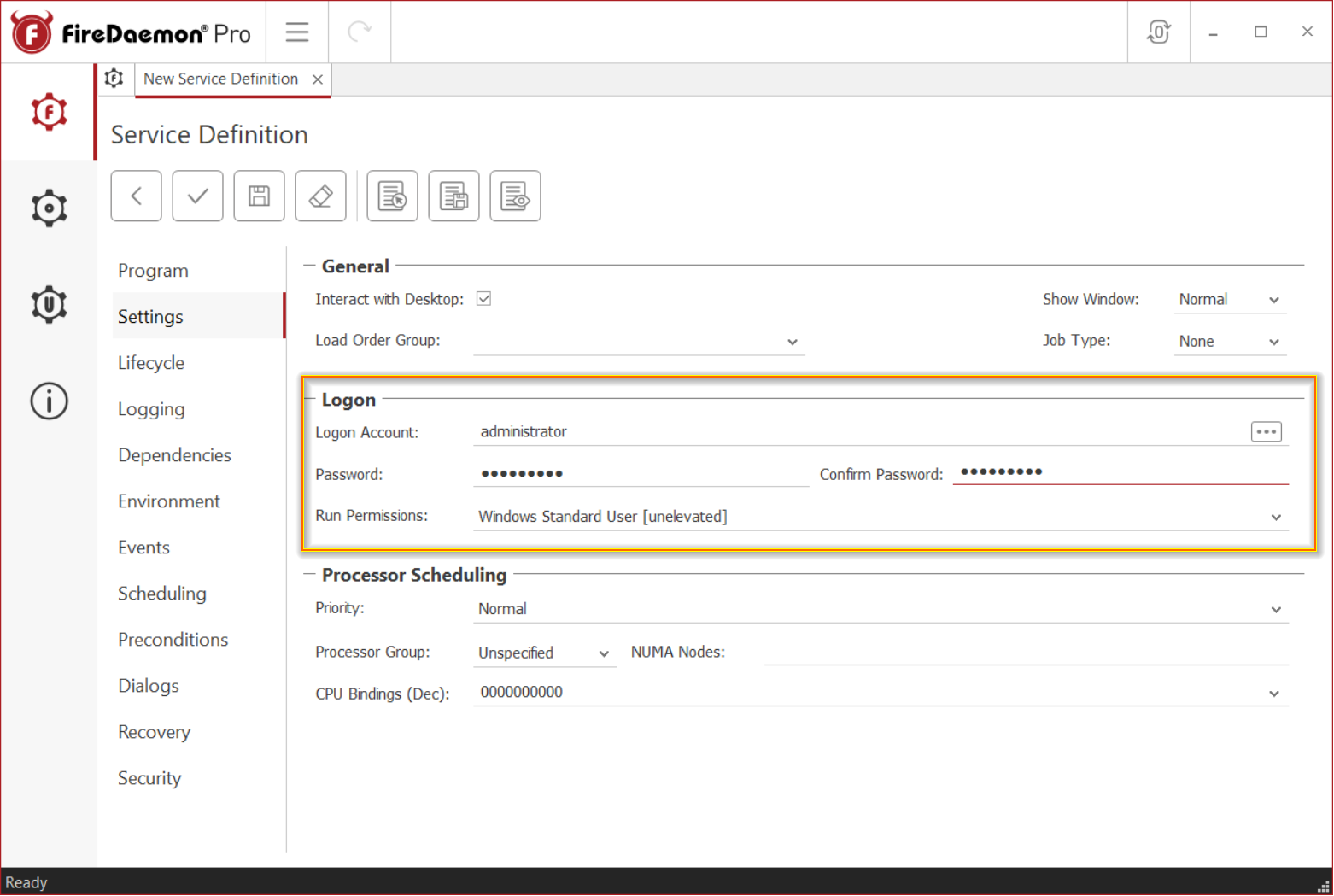
Now click on the Settings tab and set up the user account to run OneDrive. This must be the same account you are currently logged in as (in this case, Administrator). That user must be a local or domain administrator. Enter the user's password twice. Ensure you set Run Permissions to "Windows Standard User [unelevated]". Then click "the tick" to save and run OneDrive.
Verify OneDrive is running correctly
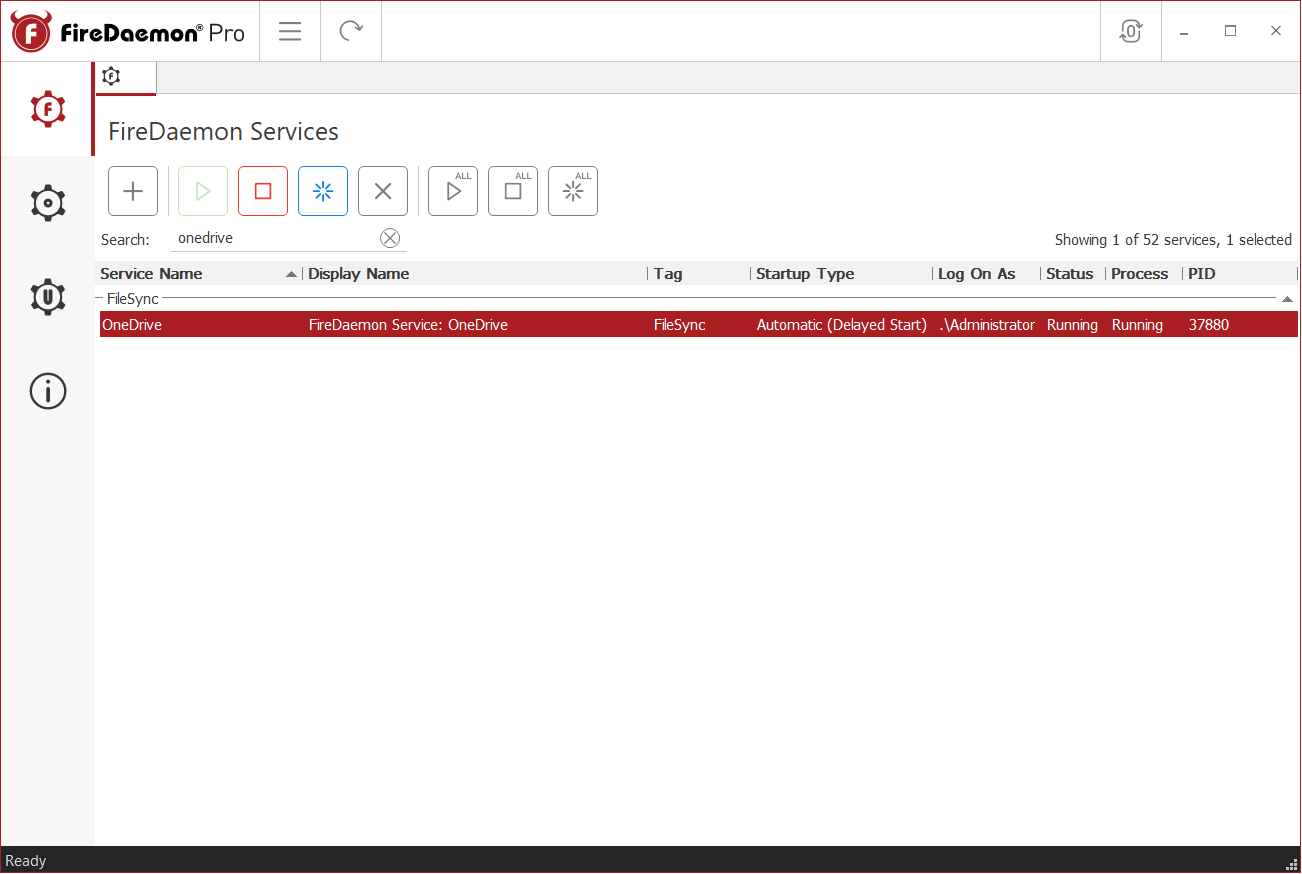
OneDrive should be running. You can verify it is running correctly by viewing the FireDaemon Services list. Status should be Running, Process should be Running, and you have a Process ID (PID) that does not change.
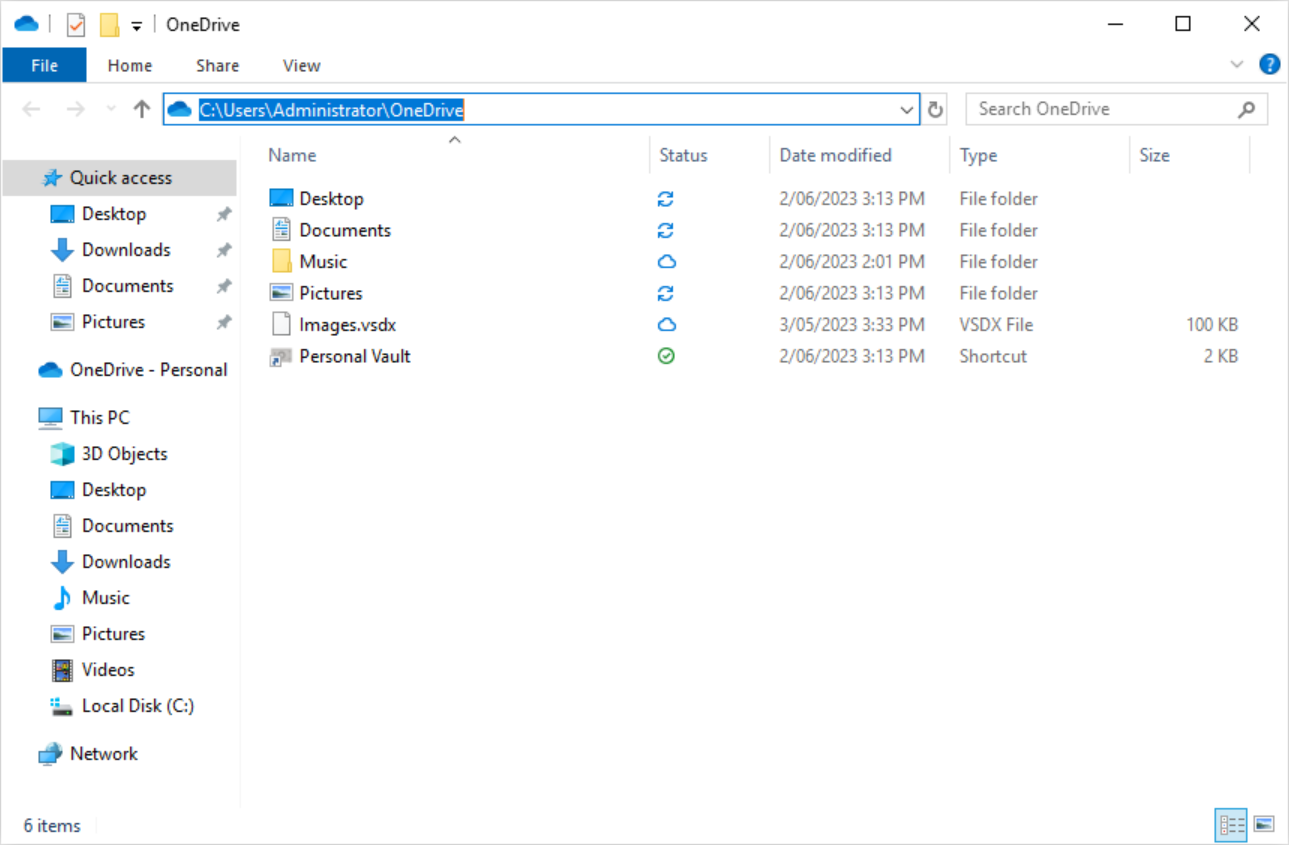
You should now be able to open your OneDrive folder (e.g. C:\Users\Administrator\OneDrive) and view your synchronized files.
Managing OneDrive when running under FireDaemon Pro control
- Stop the FireDaemon Pro OneDrive service
- Manually start OneDrive and change the Settings
- Logout / login
- Start the FireDaemon Pro OneDrive service again
Troubleshooting
If OneDrive is not syncing, ensure you have followed the steps above. Ensure there are no other instances of OneDrive running on your computer. There must only be one instance. Verify this via Task Manager -> Details and look for OneDrive.exe. You can also interrogate the OneDrive logs using this tool.